DevTools Usage
Vue DnD Kit includes a DevTools package that helps you monitor your drag and drop state in real-time. This integration works directly with Vue DevTools to provide visibility into your application's DnD state.
Installation
To use DevTools, first install the package:
#yarn
yarn add @vue-dnd-kit/devtools

#npm
npm install @vue-dnd-kit/devtools

#pnpm
pnpm add @vue-dnd-kit/devtools
If you haven't installed the core package yet, you'll need both:
yarn add @vueuse/core @vue-dnd-kit/core @vue-dnd-kit/devtoolsIntegration
Add the DevTools to your Vue application:
// main.js or main.ts
import { createApp } from 'vue';
import App from './App.vue';
import VueDnDKitPlugin from '@vue-dnd-kit/core';
import VueDnDKitDevtools from '@vue-dnd-kit/devtools';

const app = createApp(App);

// Register the core plugin
app.use(VueDnDKitPlugin);

// Register DevTools
app.use(VueDnDKitDevtools);

app.mount('#app');
The DevTools integration automatically works only in development mode.
Using DevTools
After installing and registering the DevTools plugin, follow these steps to access the state viewer:
- Open your application in a development environment
- Open browser DevTools (F12 or right-click → Inspect)
- Navigate to the Vue panel in DevTools
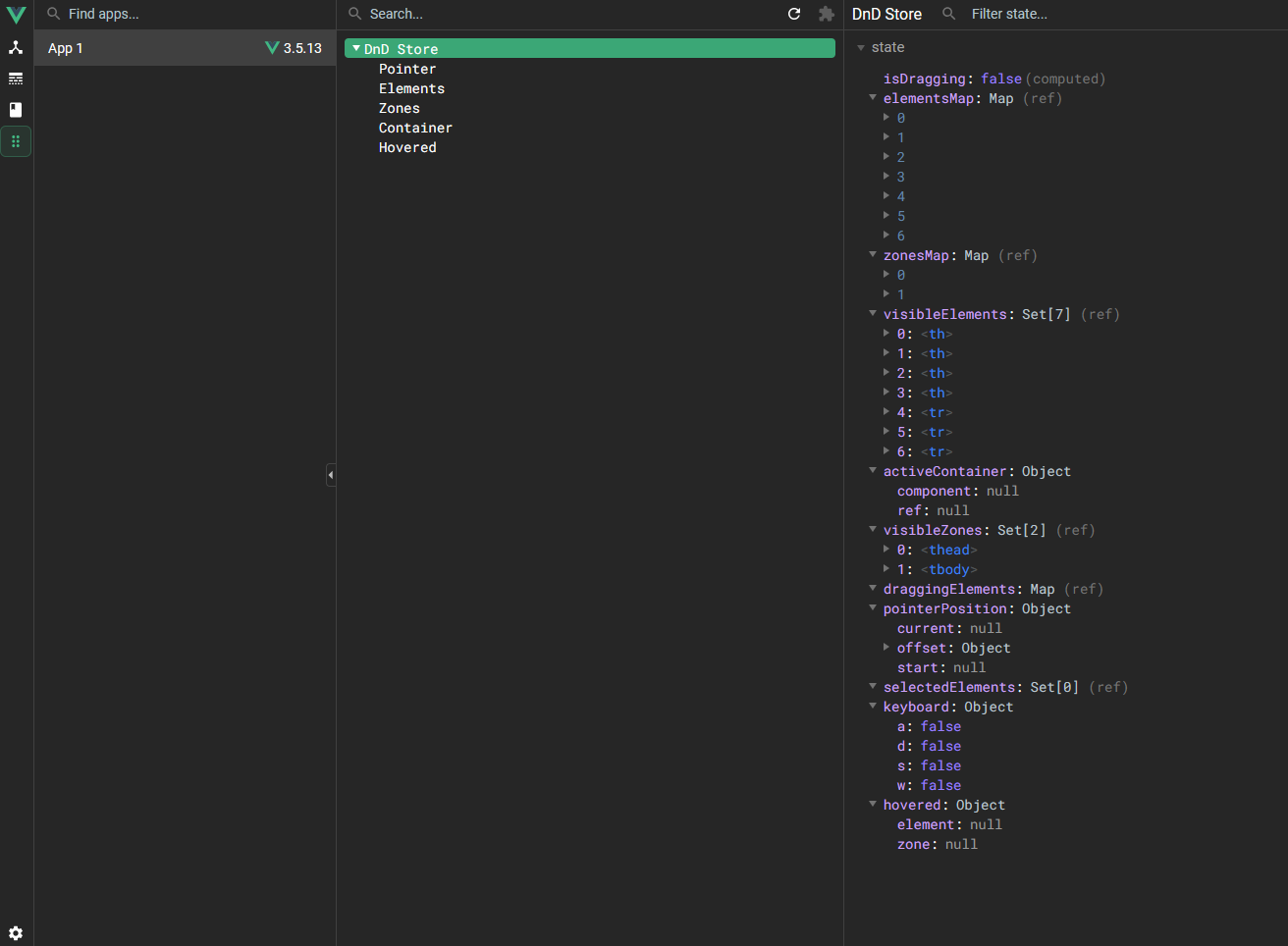
- Look for the "DnD Store" section in the Vue DevTools sidebar
Available Information
The DevTools panel shows the current state of your DnD system:
- Elements: All registered draggable elements
- Zones: All registered drop zones
- Pointer: Current pointer position and state
- Container: Container information
- Hovered: Currently hovered elements and zones
This information updates in real-time as you interact with your drag and drop interface, making it easier to debug issues and understand the current state of your application.